Analysis and Auto Edit
Audionaut can listen to your material and use what it hears to cut and arrange it. Analysis is powered by the Essentia library; in builds without Essentia these features are unavailable.
Analysis
Four analysis types are available (Settings → Analysis):
- SBic — segment boundaries (where the character of the audio changes)
- Onsets — note/event onsets
- Beats (multifeature) and Beats (Degara) — beat tracking
With Analyse new audio files automatically enabled, imported and recorded audio is analysed in the background. Results are cached inside the project, so analysis runs once per file. Auto Edit uses SBic and Beats (Degara).
Auto Edit step 1 — Create Segments
Select a clip and choose Edit → Auto Edit → 1. Create Segments… (Cmd+1). An overlay appears on the clip previewing the cut:
- Less / More — fewer or more segments (the preview realigns to analysed boundaries; the default granularity is 4 measures)
- Xfade — toggle crossfades at the joints
- Apply — perform the cut; Esc cancels the preview
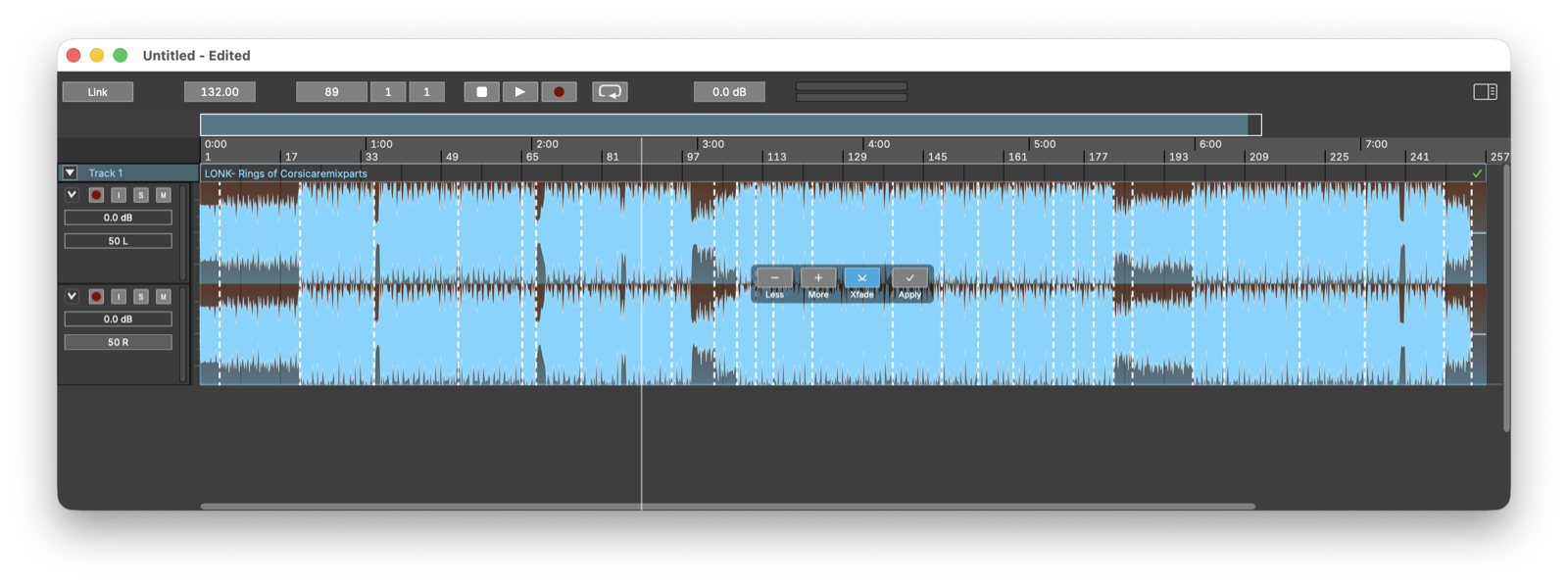
Applying replaces the clip with its segments — each a named region placed seamlessly where the clip was, with optional equal-power crossfades at every joint. One undo restores the original clip.
Crossfade length and curve for these joints are set in Settings → Auto Edit.
Auto Edit step 2 — Assemble
Edit → Auto Edit → 2. Assemble → Sequential… (Cmd+2) or Random… (Cmd+3) builds a new arrangement from the track's regions. Choose the target length in the dialog; Audionaut lays out regions back-to-back — in order, or shuffled — until the duration is reached.
Segments from Create Segments are the natural input, but Assemble works with any regions on the track.
Seeing the analysis
Analysis results can be displayed as overlays on a track's clips, so you can check what the analysis found before cutting.
Right-click the track header and open the Show Analysis submenu: it lists SBic, Onsets, Beats and Beats (Degara), each a toggle with a tick when currently shown. The setting is per track, so you can, say, show segment boundaries on one track and beats on another.